
Stream
This feature allows you to stream a video feed from a drone's camera to any video streaming service (Milestone, Luxriot, YouTube, etc.). This feature is only available for UgCS Enterprise licence.
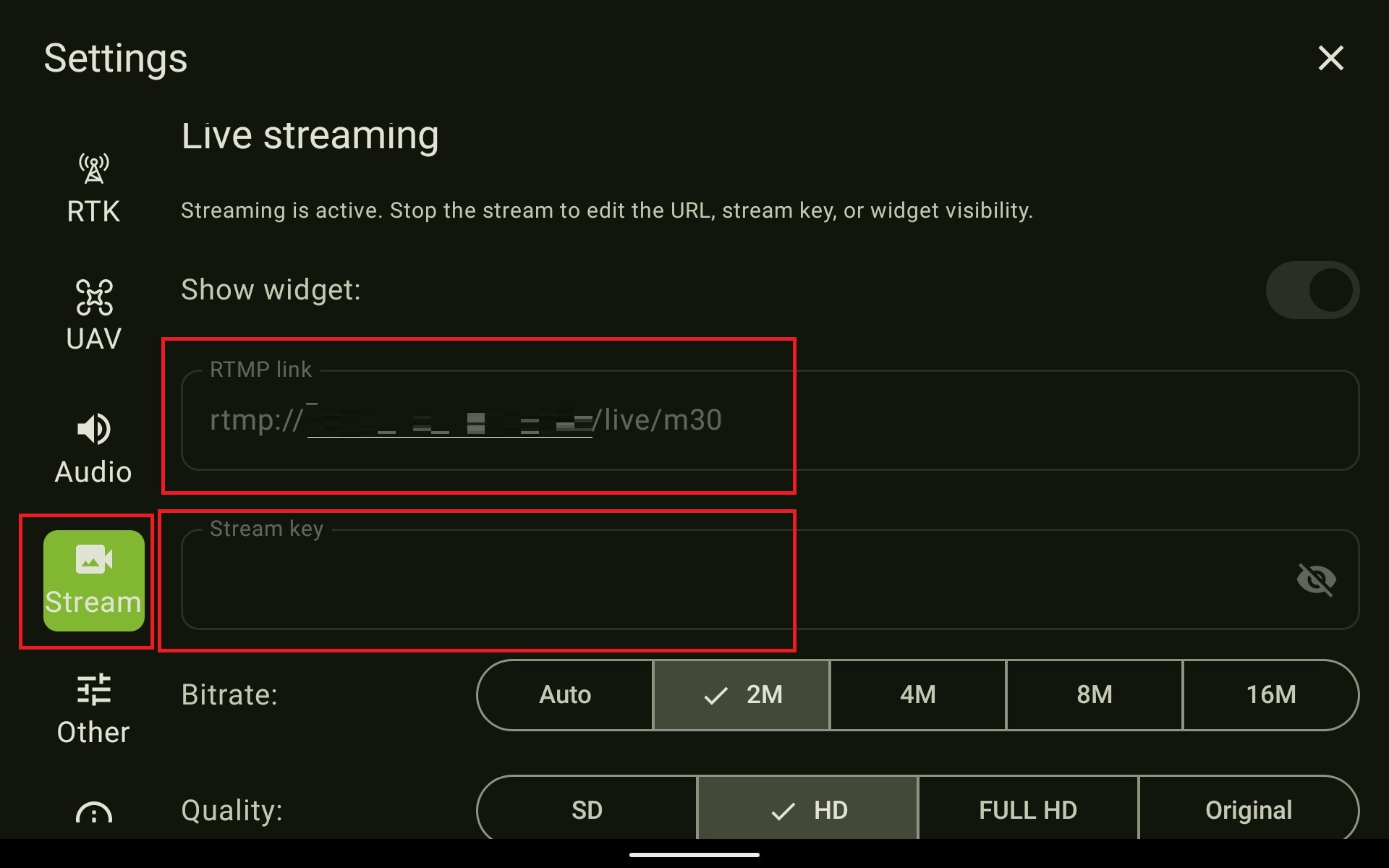
Start streaming by pressing the 'Start' button on the main screen in the widget.
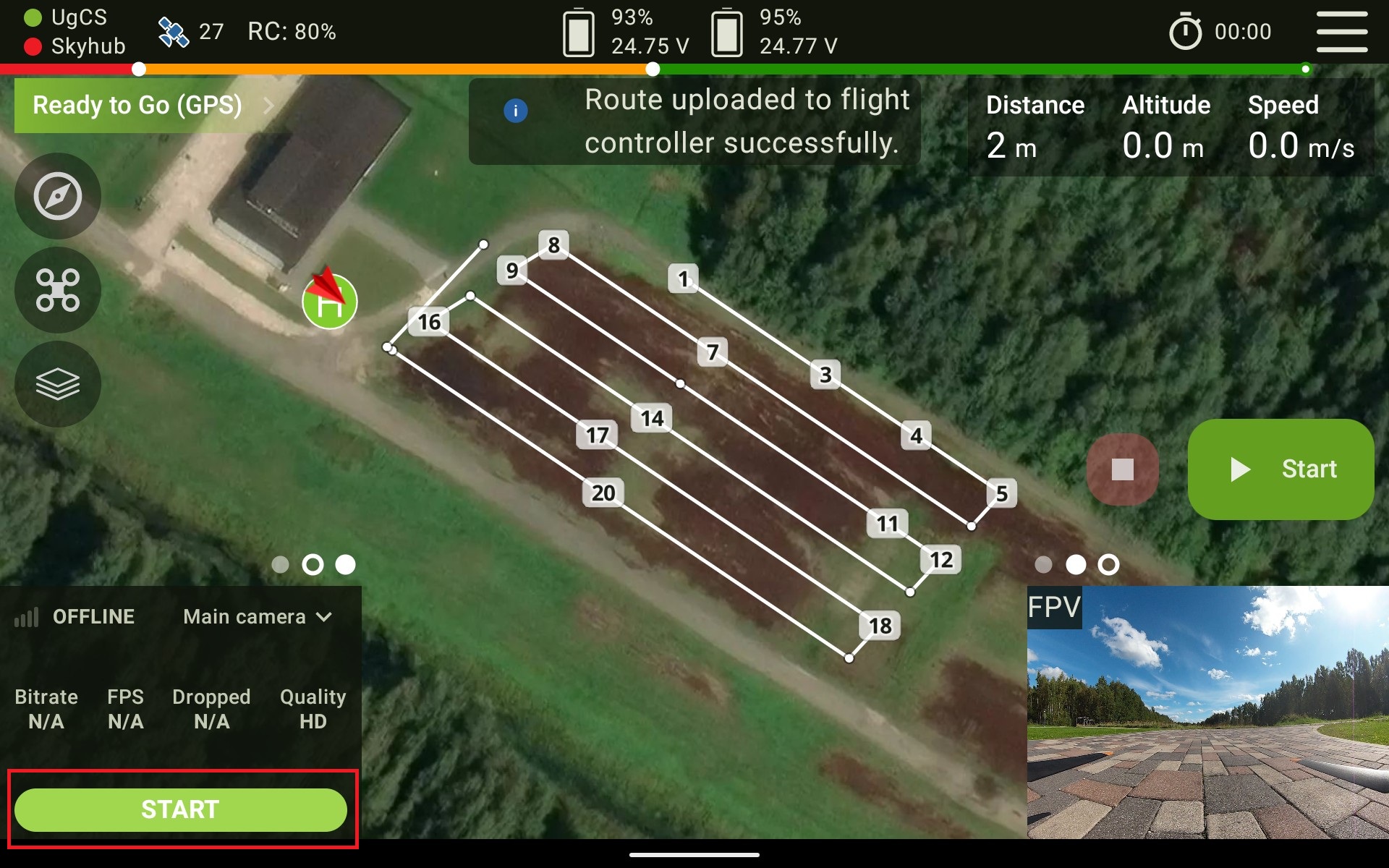
While streaming, an indication that the stream is Live is shown.
Streaming can be stopped using the 'Stop streaming' button.
Streaming to UgCS Video Server.
Note: This tool is in test stage and is not accessible on our download page. It can be provided on demand.
To start streaming to UgCS Video Server, it has to be installed on your computer.
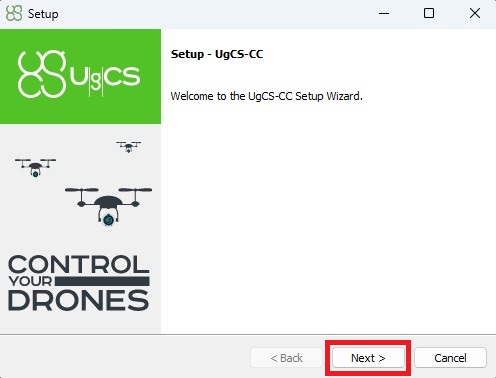
Launch the setup of UgCS-CC and press "Next".
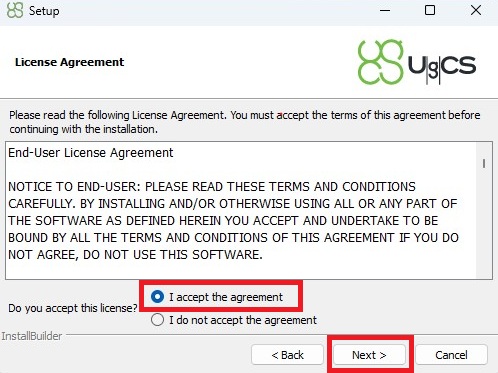
Accept the user agreement and press "Next".
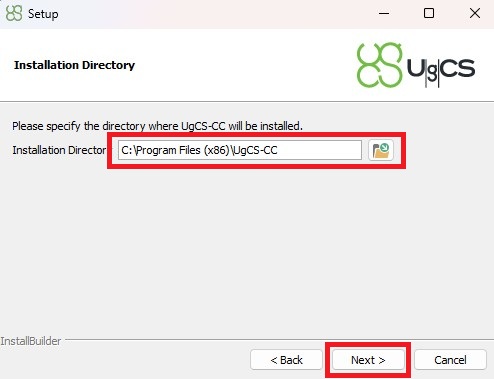
Choose the installation path and click "Next". We suggest leaving the default installation path.
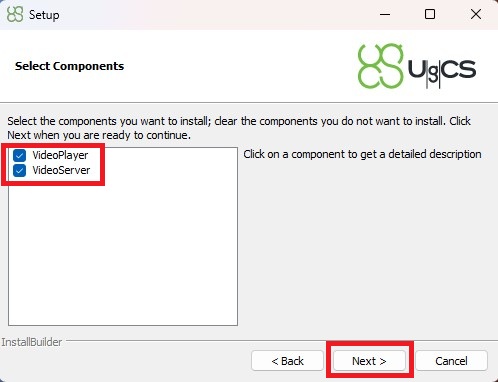
Make sure both components "VideoPlayer" and "VideoServer" are selected for installation.
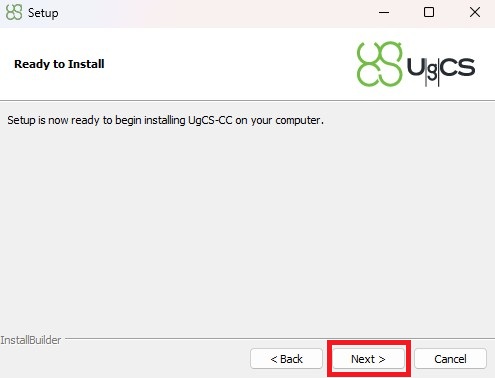
Press "Next" to start setup.
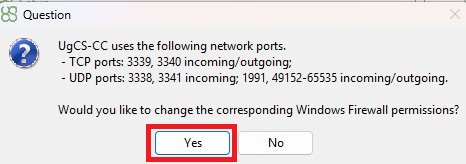
Allow setup to configure Windows Firewall settings to allow the streaming by clicking "Yes".
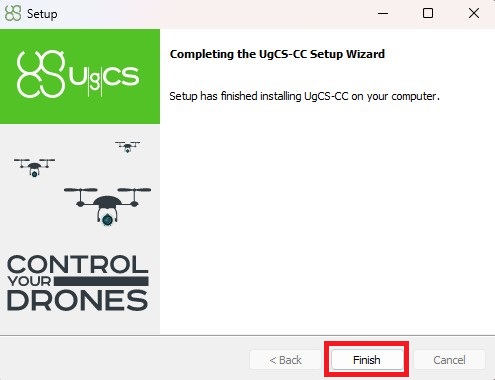
Finish the setup
Ensure that your computer with UgCS Video Player and the remote controller with UgCS Companion are both connected to the same wireless network.
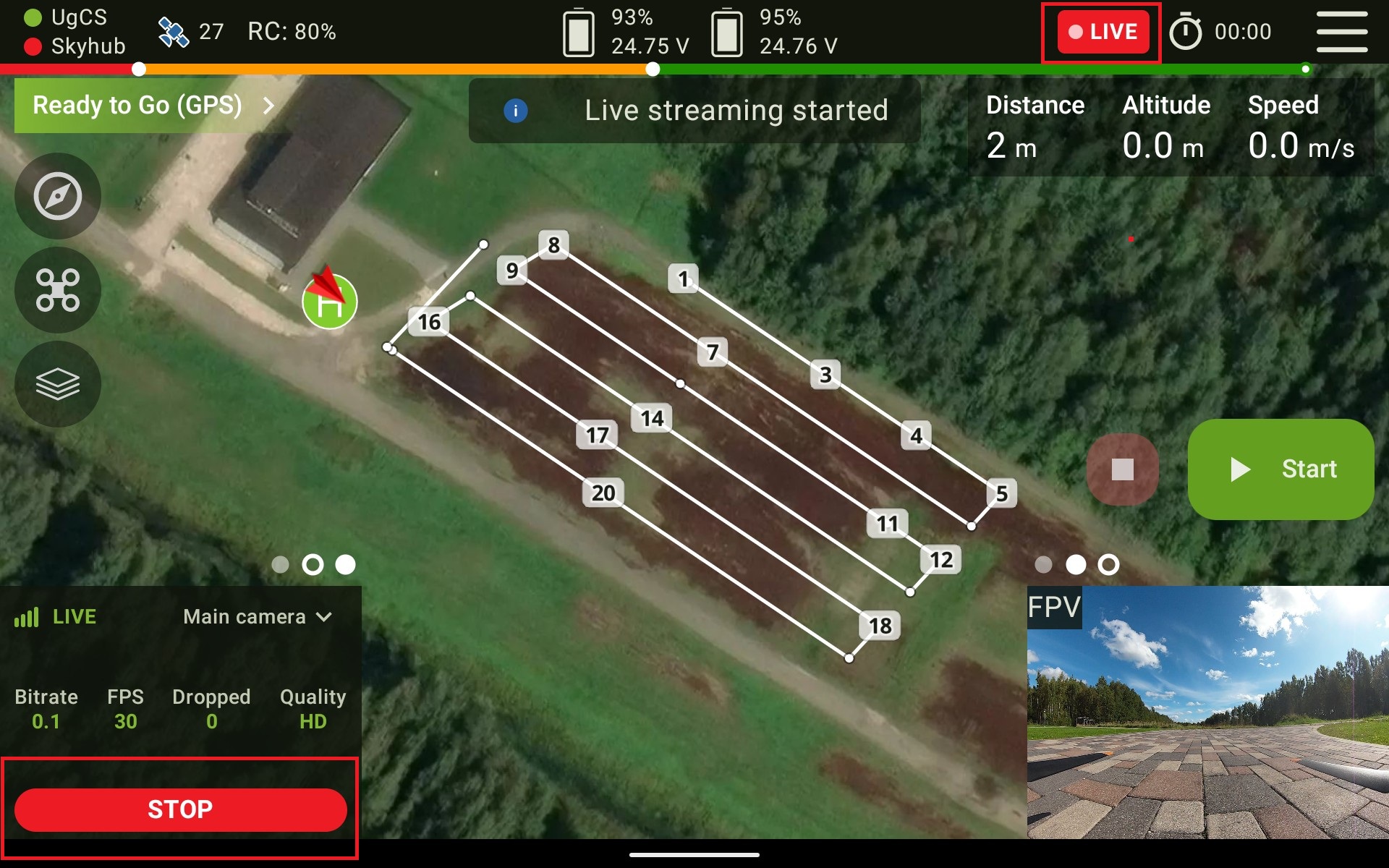
To configure streaming functionality, enable the widget in UgCS Companion. Provide an RTMP link. The format of the RTMP link is as follows:
rtmp://[IP_address]/live/[name]
Where:
- "IP_address" has to be an IP address of the computer where UGCS Video Player is installed;
- "name" is some name of your choosing. e.g. rtmp://192.168.145.10/live/m30
If you use a third-party streaming service, the RTMP link and a Stream key should be provided by the service provider.
The stream key should be left blank when using UgCS Video Player.
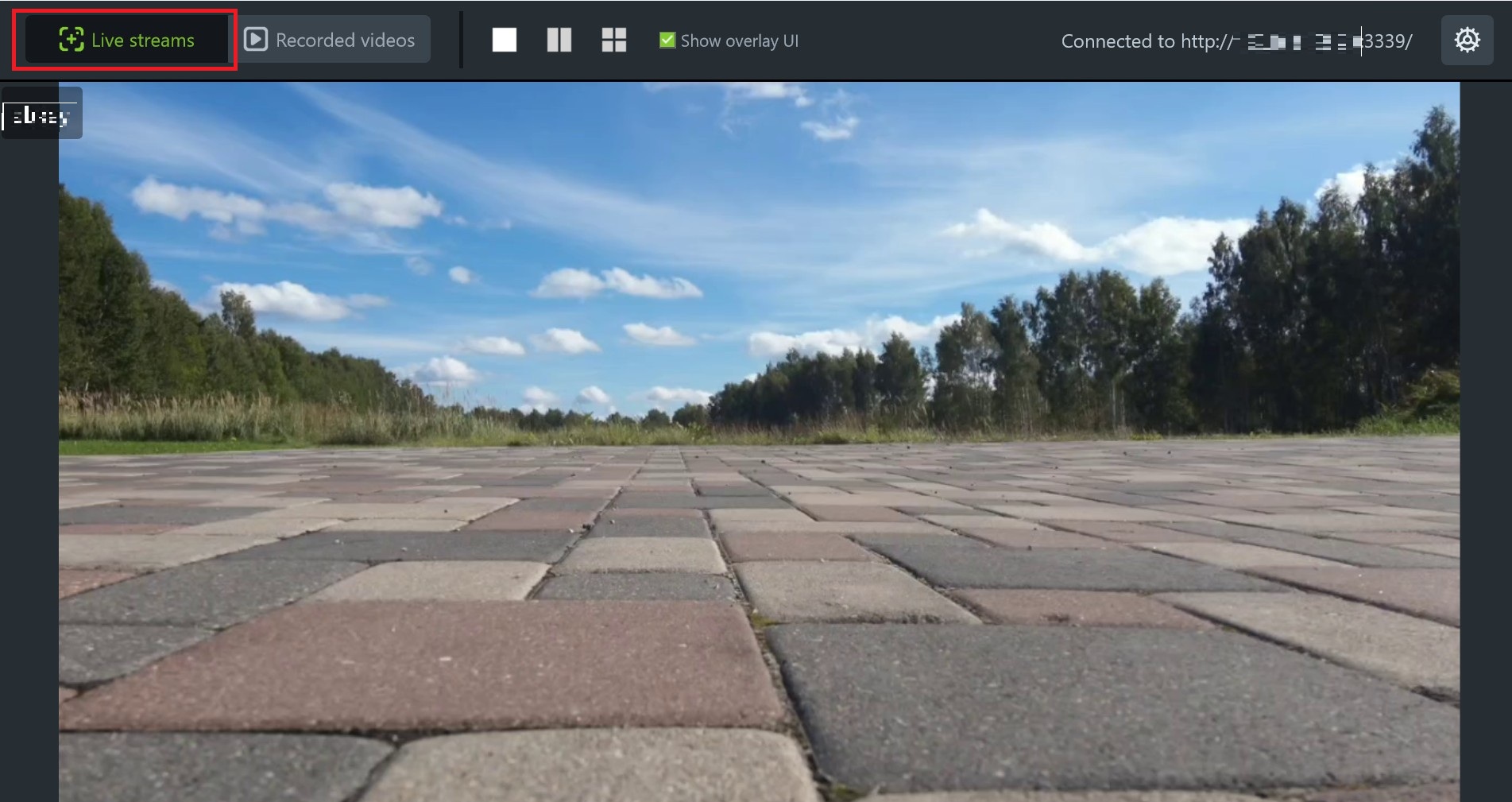
Once UgCS Video Player is running on your computer and the stream has been enabled in UgCS Companion on your RC, UgCS Video Player should automatically connect to the stream, and you will be able to see the live video feed.
Updated about 1 month ago